
Introduction
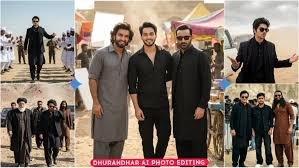
If you’ve been scrolling through Instagram Reels or YouTube Shorts, you’ve likely seen the viral Dhurandhar walk scene edits inspired by the iconic Rehman Dakait style entry. The powerful slow-motion walk, cinematic lighting, and intense expressions make these edits look like scenes straight out of a big-budget movie.
Many creators ask one question:
“Can I recreate the Dhurandhar style video with my own face?”
The answer is YES — and the best part is, you can do it completely FREE using Google Gemini and Google Flow AI.
This blog will guide you step by step on how to transform a simple selfie into a cinematic Dhurandhar entry reel using AI-generated frames and smooth motion animation.
What You Will Need
Before starting, make sure you have the following:
- One clear, front-facing photo of your face
- 9 Dhurandhar reference scene images (IMG 1 to IMG 9)
- Google Gemini (Nano Banana Pro image mode)
- Google Flow AI
- CapCut, VN Editor, or any video editor
- Dhurandhar “FA9LA” background audio
Step 1: Download the 9 Dhurandhar Reference Images
First, download all 9 reference frames from the Dhurandhar movie scene used in the tutorial.
- Save all images in correct order (IMG 1 to IMG 9)
- Do not rename or shuffle the sequence
- These frames will act as style and pose references
Step 2: Generate Dhurandhar-Style Images Using Google Gemini
Now it’s time to replace the movie character’s face with your own while keeping the Dhurandhar cinematic style intact.
Base Prompt (Use for All 9 Images)
Open Google Gemini, switch to image creation mode (Nano Banana Pro), and start a new chat.
Prompt:
Make first image style into other second image person, make 8K, high resolution, sharp, cinematic, 100% same clothes and pose, no blur.
Correct Upload Order (Very Important)
For each frame:
- Upload the Dhurandhar reference image
- Upload your face photo
- Paste the prompt
- Generate and download the image
Repeat this for IMG 1 to IMG 9 to maintain consistent outfit, face, and lighting.
Step 3: Animate Images Using Google Flow AI
Once your 9 images are ready, animate them into smooth cinematic transitions.
Google Flow AI Settings
- Create a new project
- Select Frames to Video
- Aspect ratio: 9:16 (Vertical)
Upload images two at a time (Frame 1 → Frame 2) and generate each clip.
Dhurandhar Flow AI Prompts
- IMG 1–2:
Stepping out of a wooden doorway, left hand pushing the curtain aside, left foot forward, body leaning slightly forward. - IMG 2–3:
Slow motion, don’t change face. - IMG 3–4:
Very slow motion, small arm swing, right arm slightly pulled back, head straight, serious expression. - IMG 4–5:
Very slow motion, dance-style movement. - IMG 5–6:
Cinematic wide shot, slow dolly forward, warm lighting, smooth parallax, no cuts or subtitles. - IMG 6–7:
Side-profile close-up, slow camera arc, gradual pull-back, clapping motion in slow motion. - IMG 7–8:
Slow-motion clap dance. - IMG 8–9:
Slow-motion sitting and clapping.
Download all 8 generated clips.
Step 4: Edit and Finalize the Dhurandhar Reel
Now bring everything together.
- Open CapCut or VN Editor
- Create a 9:16 vertical project
- Import all 8 clips in order
- Add the Dhurandhar “FA9LA” audio
- Adjust timing if needed
- Export in high quality
Recommended Hashtags for Instagram Reels
#Dhurandhar
#FA9LA
#AIReels
#AIWalk
#AICinematic
#AIVideo
#GeminiAI
#GoogleFlowAI
Final Thoughts
With just one selfie, 9 Dhurandhar reference frames, and free AI tools, you can create a cinematic reel that looks professionally shot. This method lets anyone recreate the iconic Dhurandhar walk entry style without cameras, actors, or expensive software.
If you follow each step carefully, your reel will stand out and perform exceptionally well on Instagram Reels and YouTube Shorts.